Add a legend
Give the reader a key to your diagram's colours and line styles — on the canvas, and in the image you commit.
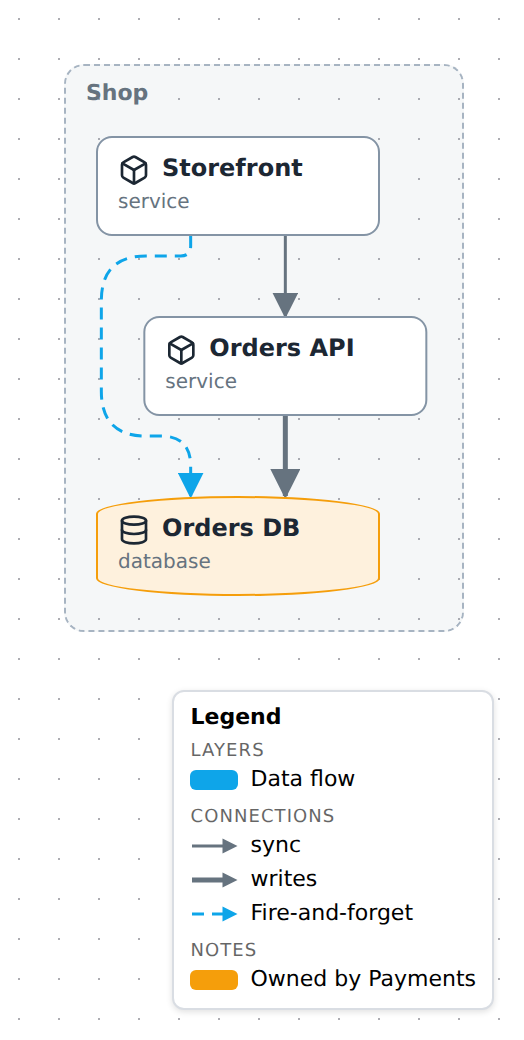
Switch it on
m.legend();
That is the whole opt-in. A diagram that never calls it has no legend in its image, and none on the canvas either — with one exception, diagrams that offer one anyway. There is no global default to switch off.
A bare call derives every row from the diagram itself. The picture above is that, plus two hand-written lines.
What gets derived
show key |
Heading | Derived from | Default |
|---|---|---|---|
layers |
Layers | Declared layers that something in this plane uses — on or off. | on |
kinds |
Connections | The relation kinds currently drawn. | on |
types |
Elements | The node types currently drawn. | off, except shapes that carry no words |
marks |
Marks | Badges and column tags currently drawn: a threat count, a table's 🔑 and FK. |
on |
Ask for every element explicitly:
m.legend({ show: ['layers', 'kinds', 'types', 'marks'] });
Shapes that carry no words are keyed without asking. A box prints its own type under its name, so a row for it repeats the canvas — that is why Elements is off. A start dot, a decision diamond, a DFD process or a data store prints nothing, so a bare legend lists those anyway, captioned in words: Start, Decision / merge, Process. An activity frame, a lane and a note are left out — each already says what it is. An explicit show is obeyed to the letter: with types it lists every element, without it none.
Connections and elements follow what is drawn. Fold a group, switch a plane, switch a layer off — kinds and types that no longer appear leave the key. Their order comes from the built-in registry, then alphabetically for ids it does not know, so the list never reshuffles as you fold and unfold.
Layers are the exception, on purpose. A layer row is the switch that reveals its overlay, so it cannot vanish while the overlay is hidden — there would be nothing left to click. The Layers section is read from the model instead: every declared layer that something the current plane could draw carries, listed in declaration order, on or off. Folding does not change it, and switching a layer off greys its row rather than removing it. Switching planes does change it: a layer nothing in the new plane uses drops out.
A connection swatch is drawn from the kind's registry style — its dashes, its weight and the ends the arrow really has: an arrowhead, none on a note link, a crow's foot and a bar on a foreign key, the lightning jog of an interrupt. An element swatch is the shape the canvas draws, in the accent every drawn node of that type shares; that is what makes a trust boundary's row red.
A connection swatch also takes the layer tint when every arrow of that kind shares one. That is why Fire-and-forget is blue above: every flow arrow is on the data-flow layer. Where arrows of one kind sit on different layers, or some are on the untinted base sheet, the swatch stays neutral rather than claiming a colour half of them do not have.
Add what cannot be inferred
A derived row is accurate but terse: a connection row is labelled with the raw kind id. Use items for meaning the model does not carry.
m.legend({
  items: [
    { label: 'Fire-and-forget', kind: 'flow' },
    { label: 'Owned by Payments', color: '#f59e0b' },
  ],
});
Those two lines do different things:
kind: 'flow'already has a derived row, so that row is recaptioned in place. It keeps its position and its real swatch —Fire-and-forget, drawn with the actualflowarrow. This is the rename trick: caption a kind without maintaining a list of every other one.typeworks the same way.coloron its own has nothing to attach to, so it is appended under Notes as a colour chip. That is how you explain a convention the renderer knows nothing about.
| Field | Effect |
|---|---|
label |
Required. The row's text. |
kind |
Swatch is that relation kind's line. Recaptions the derived row when there is one. |
type |
Swatch is that node type's shape. Recaptions the derived row when there is one. |
color |
Tints whichever swatch is drawn. On its own, a plain chip. |
icon |
Icon for a type swatch, overriding the registry's. |
Title and corner
m.legend({ title: 'Key', position: 'top-left' });
position is one of top-left, top-right, bottom-left, bottom-right. It defaults to bottom-right, the one corner the studio's own chrome leaves free. title defaults to Legend.
Diagrams that offer one anyway
An activity diagram, a threat model and an ER diagram are drawn in shapes and line ends with no words on them. The reader has no other way to learn that vocabulary, so there the ▤ button is present even when the file declares no legend. The panel starts hidden; ▤ — or Shift + L in the studio — brings up the bare legend described above.
What decides it is what is drawn, not a setting: one row that explains a wordless shape, a captioned line (Control flow, Data flow, Foreign key: many to one) or a mark is enough. A diagram with none of those keeps the old rule — no declaration, no legend.
Declaring still means what it always did. m.legend() makes the panel start shown, puts it in the PNG and on the published page as it loads, and is the only way to set title, position, show and items. An undeclared legend never reaches an image: nobody is there to press the button.
In the studio
▤in the corner controls shows and hides the panel. It appears only when there are rows to show, and the choice is yours alone — it is never written to the diagram.- The caret in the panel header collapses it down to its title.
- Click a layer row to toggle that overlay, exactly like the layer chips. Layers that are off are listed greyed, so the legend doubles as the switch.
- In edit mode, the Legend checkbox in the Layers & planes drawer adds or removes the declaration. It writes a bare
legend: {};title,position,showanditemsare authored in the file. Where the button is there either way, the checkbox decides whether the panel starts shown and reaches the image.
In exports and on published pages
A declared legend is baked into the PNG and into the published HTML page, with two differences from the studio canvas:
- Layers that are off are dropped, not greyed. Neither an image nor a published page offers a layer switch, so a greyed row would be noise — worse, on the page it would look clickable and do nothing. An overlay reaches the key there only if the exported plane presets it in
layers. The rows that do appear are plain rows, not buttons. - The capture frame grows by the legend's height, so the panel can never cover the diagram.
Gotchas
- Connection and element rows describe the drawn view, not the model. A kind used only by relations behind a switched-off layer has no row at all. Switch the layer on and the row appears. Layer rows are the deliberate exception — see What gets derived.
- Neither an export nor a published page shows a greyed row. If a committed image or page is missing the overlay you wanted explained, preset it on the plane you export — Use planes and layers does this for its data-flow figure.
showreplaces the default list, it does not extend it.show: ['types']loses the layer, connection and mark rows.- An undeclared legend is a canvas affordance, not part of the picture. It is never in a PNG, and a published page opens with it hidden.
- An included diagram's legend is dropped.
includegrafts nodes, containment, relations and layers; only the root diagram's legend is ever drawn. Declare one on the umbrella. - A connection row describes the kind, not one arrow. Restyle a single relation —
m.relate(a, b, { kind: 'sync', style: { color: '#dc2626' } })— and that one arrow turns red while thesyncrow stays neutral. A per-relation override is a property of that arrow, not of the kind, so it is deliberately not lifted into the key. Give it anitemsrow if it needs explaining. - The panel sizes to its longest row, up to 240px. Past that, labels ellipsize — keep
labelto a few words.
See also
- Use planes and layers — the legend is the reader-facing half of layers
- Publish and share — what reaches a committed PNG
- Model reference — every field and its default