Draw a plan
A schedule: zones as date bars that nest, events as milestones, people or teams attached to a zone as owner, executor or checker. A calendar runs left to right — the layout, not you, places every box on that axis — and containment is what is scheduled inside what, so a phase with two work streams is a zone with two nested zones.
In the studio
- Create a new diagram (or add a plane to an existing one) and, in Layers & planes, set its Notation to Plan (schedule).
- Press Edit. The Plan panel appears on the right.
- Drop a Zone from the Library's Plan category — it lands two weeks wide at the date under the pointer (a zone dropped inside another starts where its parent does) — and name it; drop a second zone onto the first to nest it. A node turned into a Zone or Event afterwards (Properties → Type, or a Plan card applied to the selection) is dated the same way: today, or its parent's start when it is already nested. Select a zone or event and press + to add its successor instead of dropping a new one — the next zone starts the day after this one ends and runs the same length, the next event lands a week later — both clamped inside the parent and linked back with a dependency arrow.
- Drag a bar sideways to move its dates by whole days (a nested bar stays inside its parent); drag it up or down to reorder top-level bars. Drag its left or right edge to change the start or the end. A zone that doesn't have dates yet (still flagged by validation) can be dragged into place instead of typed in Properties — dropping it sets its start and end from where it lands, clamped inside its parent when it has one.
- Drop an Event for a milestone.
- Add people or teams with Add person / Add team in the Plan panel, then pick them as Owner / Executor / Checker on a zone — the chips
O·,E·,C·appear on the bar, one letter per role, hover for the full name. Or drag a person or team from the roster onto a zone to make them its executor in one gesture (a no-op if they already hold a role there); drag any other node onto a zone and it moves into it. Click a chip to change the role or remove the actor. - Schedule a node that lives on another plane (a C4 container, an ER table…) by selecting it and, in Properties → Memberships, adding the zone as a container on the plan plane. It drops into the zone's flow at first; drag it anywhere inside the bar afterwards and it stays exactly there (the bar grows to fit) instead of snapping back into the flow.
- Comment on a bar in Properties → Comments and attach resources in Properties → Links — the badge at the bar's corner opens both on the published page.
Reading a plan
Click an actor — a person or a team — and the zones they hold a role on stay bright with a coloured outline, the chip for that role turns solid, and the rest of the chart dims. Click a zone instead and its actors light up the same way, in their own colours. Click empty canvas to clear it. This works in both the studio and a published page — it is a viewer gesture, never saved to the diagram.
From TypeScript
import { model } from '@diagc/core';

// Copy this file, rename the zones and the people, and move the dates.
const m = model('launch-plan', { name: 'Launch plan' });
const plan = m.plan();

const alice = plan.person('alice', 'Alice Ng', { color: '#2f6fed' });
const bob = plan.person('bob', 'Bob Lee', { color: '#b08ad9' });
const chen = plan.person('chen', 'Chen Wu', { color: '#3a9d5d' });
const support = plan.team('support', 'Support team', { color: '#607d8b' });

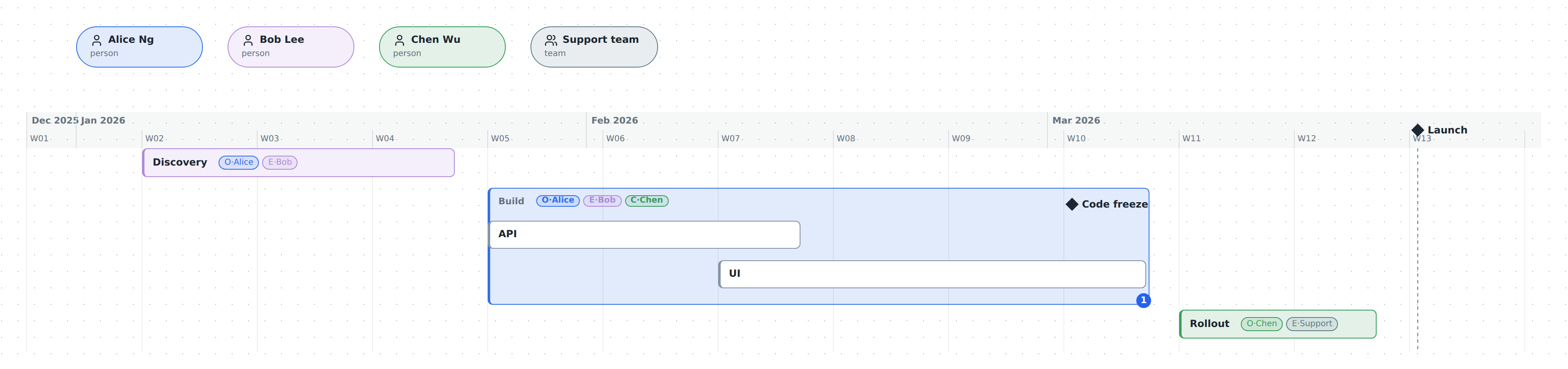
const discovery = plan.zone('discovery', { name: 'Discovery', start: '2026-01-05', end: '2026-01-23', color: '#b08ad9' });
discovery.owner(alice).executor(bob);

const build = plan.zone('build', { name: 'Build', start: '2026-01-26', end: '2026-03-06', color: '#2f6fed' });
build.owner(alice).executor(bob).checker(chen);
build.zone('api', { name: 'API', start: '2026-01-26', end: '2026-02-13' });
build.zone('ui', { name: 'UI', start: '2026-02-09', end: '2026-03-06' });
build.event('code-freeze', { name: 'Code freeze', at: '2026-03-02' });
build.comment('UI started a week late; the freeze holds', { by: 'Alice Ng', at: '2026-02-16' });
build.link('Tracker', 'https://example.com/board/launch');

plan.zone('rollout', { name: 'Rollout', start: '2026-03-09', end: '2026-03-20', color: '#3a9d5d' }).owner(chen).executor(support);
plan.event('launch', { name: 'Launch', at: '2026-03-23' });

export default m;
m.plan() declares the plan plane and hands back a PlanBuilder. plan.zone(id, opts) is a top-level zone; call .zone(...) on a zone to nest another one inside it, and .event(...) for a milestone in it — ZoneBuilder.event() returns a plain NodeRef, so keep it last in a chain, as build.event('code-freeze', …) is above. plan.person(id, name?, opts?) declares a person and plan.team(id, name?, opts?) a team — the same shape, an actor either way; .owner(), .executor() and .checker() on a zone each add a role relation from that actor to the zone, and take a person or a team indifferently. A ZoneBuilder is a NodeRef, so .comment() and .link() chain on it too. To schedule a node from another plane — a C4 container, an ER table — call .contains() on the zone with that node's ref; the node stays shared, only the plan plane gains a new containment edge. See Builder API reference.
What to know
- Dates are
YYYY-MM-DD, andendis inclusive. A zone spanning2026-01-05to2026-01-23covers the 23rd, not up to it. xis always the date — the layout owns it.yis free only for a top-level zone (drag it up or down to reorder); nested zones and events inside a zone are rows, automatic and sorted by start date. Any other node inside a zone (a scheduled C4 container, a plain box) is free-form instead: it stays wherever you drag it, and the bar grows to fit.- Actors are relations, not containment.
owns/executes/checksruns from the actor — a person or a team — to the zone, so one actor can hold a role on many zones, and a zone can be shared by several actors in the same role. - Role relations never draw as arrows.
owns,executesandchecksbecome theO·/E·/C·chips on the zone instead. Any other relation kind between two zones (sync, …) draws as an ordinary dependency arrow. - The today line follows the reader's clock, and it is never in the PNG. An export has no "tomorrow" to be wrong about, so publishing draws the header with no today line at all — open the page instead to see it.
- Five validation codes are specific to a plan:
plan-date(a date isn't realYYYY-MM-DD),plan-missing(a zone lacksstart/end, or an event lacksat),plan-span(a zone'sendis before itsstart),plan-nested(a nested zone or event falls outside its parent's span),plan-role-target(a role relation points at something other than aplan-zone). - Hand-ordering the ROWS a zone's nested zones and events fall into is still a follow-up — not yet built; those rows sort by start date only. A free-form child (see above) is already hand-placed — it was never in that row order to begin with.
Examples
Starter — three phases, one nested twice, a code freeze and a launch, three people holding all three roles on Build, a comment and a link. Copy it into .diagrams/src/ and change the names. Source
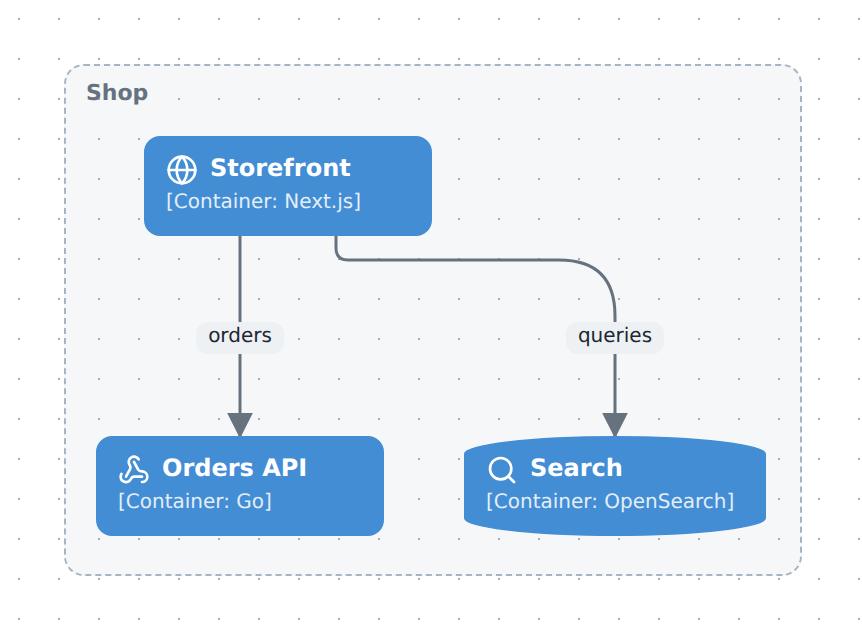
Q4 roadmap — a C4 container view and a plan plane that schedules those same containers inside zones — switch planes on the page to see either. Source
See also
- Model reference — the node types, roles, metadata keys and validation codes
- Builder API —
plan,zone,event,person,team,owner/executor/checker - Comment on a diagram — the same comments and links a zone or event carries
- Use planes and layers — adding a plan plane beside an existing view, and switching between them